Way back in the dark ages of 1993, we were introduced to this thing called email. Email in the olden days was not like email now. All the packets traveled uphill no matter where they were going, and usually there was a good three or four feet of snow on the internet backbone. We used these big hulking things called VAX/VMS nodes that were attached to some pretty sweet fourteen inch monochrome VT 100 terminals. There were also these machines that ran something called UNIX, which sounded to us like something that should have been found in the college health center, not the computer lab.
Eons passed, and things changed. Though there were many more email packets flying around, plate tectonics had changed the course of things so that now they traveled downhill, really really fast. The internet backbone became a series of tubes. All the VT 100 terminals banded together and created an archipelago in the South Pacific. And UNIX...
UNIX evolved. Mutated. It trickled down into various UNIX brands and distributions. There were things like BSD UNIX, HP-UX, and AT&T Bell Labs UNIX. There were other branches, too, rogue sprouts on the evolutionary tree: FreeBSD, and OpenBSD. Slightly alien but vaguely reminiscent life forms injected their DNA into the gene pool: Linux, and this weird little UNIX-esque animal called Solaris.
Sun recently let Solaris go open source. OpenSolaris is more a traditional UNIX environment than a Linux type environment, but the appeal of taking a peek at the 2008.05 OpenSolaris release was too great for us to resist. The folks at OpenSolaris knew this, and baked some goodies into the OS that no Linux user could refuse.
We were given a no-strings attached liveCD, so our Linux install would never know we cheated. We had a bash shell, and the GNOME desktop environment, so our eye candy and commands would feel familiar and easy.
Sometimes, though, evolution goes horribly, horribly wrong.We eagerly booted into our OpenSolaris environment on our Athlon64 X2 system. We selected our keyboard layout and language, and OpenSolaris graciously presented us with the X server and GNOME. It was pretty, and we could even activate Compiz, of all things. Yes, it was very pretty. And for a reason we'll discuss a little later, we thought it would be really beneficial to stop what we were doing with the liveCD, and reboot.

OpenSolaris had other ideas. It just didn't want to tell us what those other ideas were.
GRUB would launch, and we could select the standard OpenSolaris boot option. The splash screen showed its mug, and we'd be dumped on to a screen with the standard trademark and legal disclaimers. And the cursor would blink, and blink, and blink. We waited. Patiently.
But it was clear that the optical drive was no longer reading, and the hard drive was inactive. Keyboard presses did nothing. Trying the whole process again with a text console GRUB selection played out the same way.
Certain things disturb us much more than they probably should. Humanoid puppets, hyper-intelligent birds, and when our computers behave irrationally for no apparent reason are the big three. OpenSolaris had thrown down the first gauntlet, and by honor, we could not walk away. We had to know not only why it booted once, but why it didn't seem to want to again.
The condensed version of the next 21,600 seconds (six hours, for those not wanting to do the math) went something like this:
It's a 64-bit versus 32-bit problem. We'll edit our GRUB boot lines so we boot into 64-bit no matter what.
It's a 64-bit versus 32-bit problem. We'll edit our GRUB boot lines so we boot into 32-bit no matter what, then.
Does this piece of crap have an issue with SATA drives? How can it? That makes no sense!
Take out a stick of RAM? Are they kidding? This is based on Solaris. How can it freak at 2 gigs of RAM?
Let's disable PnP in the BIOS. Oh. It already is.
Let's mess with our memory timing. Reduce by half, they say. We laugh in the face of unstable systems.
We have got to be crazy. We've got to. Why is it so damn important if this thing ever boots again?
Why is our IDE controller on in the BIOS anyway? We don't have any IDE drives. Not that it affects anything anyway.
Let's try every ACPI setting there is. Twice. Let's disable ACPI APIC. Let's enable it again.
Who would realistically ever go through this to boot an operating system? What is wrong with us?
Oh, hey, there is a switch for kernel debugging and a verbose switch in GRUB! Edit kernel line with -k -v and boot.
At the six hour mark, we approached the solution:
ehci is having an issue. That's... USB stuff? Why does it say it is ignoring the error? Duh. Obviously it isn't.
Hey, BIOS! It's us again. Bye, auto legacy support.
That didn't work. Do we have any USB devices even attached? The printer. The printer isn't on. Or plugged in.
Let's boot with -k -v again. There, it's talking about the keyboard, and then ehci freezes--
They have got to be kidding. Seriously. Our mouse? It is a USB mouse. Fine. We'll put a PS/2 adapter on it. If this works, we will renounce the idea that technology operates on any sort of logic. Let's reboot 'er.
Dear readers, all that technology you see on the desk in front of you today? Apparently, it is a collection of happy accidents. Putting a PS/2 adapter on our mouse allowed us to reliably boot into OpenSolaris.
This confounds us on a few levels. Solaris is a UNIX derivative. UNIX is (at heart) a command line that has the ability to run a GUI. It doesn't have to. We could have booted without a mouse. But booting with a mouse that wasn't necessarily fully recognized as such is apparently disastrous. Is it an input device issue? A USB issue?
Linux, which is also at heart a command line that is able to run a GUI, does on occasion have issues with various mouse types. USB support on Linux has also been historically buggy, though it is much better than it was even two years ago. However, we've never had a Linux machine hang indefinitely because the pointer device was somewhere the OS didn't want it. We've had plenty of experiences with non-working mice.
Non-working mice are a lot easier to troubleshoot than non-working systems.
We tried out a Zen outlook (we've learned so much through this agonizing enlightening process!) and began playing with OpenSolaris in earnest.
Remember the history of email we touched on at the beginning of this post? Slow, uphill both ways? Snow on the backbone? Migraine inducing VT100 terminals? They are all still more effective than trying to connect an OpenSolaris machine to the internet.
We admit that Linux has a long way to go with wireless support. However, we can not remember the last time we had a modern, full-bodied distribution have any real issues with a wired connection. The most we might have to do in Linux is activate the appropriate device, or point it at the right gateway.
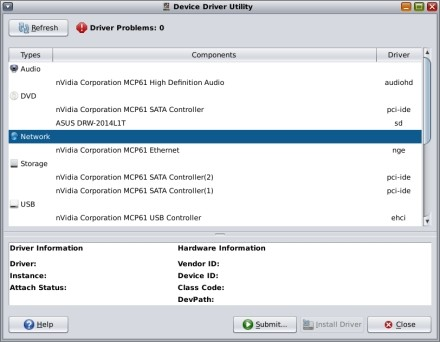
OpenSolaris does have this nice Device Driver Utility. Utility is a bit of a misnomer. Unless you write device drivers, it doesn't really do much, except tell where on the system the device driver is located and whether the driver is supported and working.
Our ethernet connection is located at nge0 (as opposed to the Linux eth0). Good to know. Our driver is working for the ethernet card. Awesome. Er, so why can't we get online?
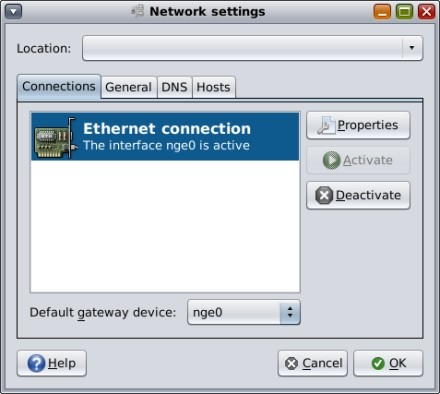
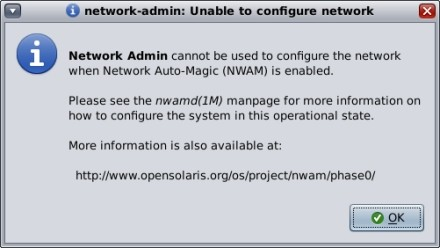
We can't reconfigure our card. OpenSolaris knows best. It uses this little Network Auto-Magic daemon. It thinks it is connected. It clearly isn't. Disabling the Magic is just different enough for a seasoned Linux user to feel a bit like they're in a bizarro universe, but at least the command line concepts between UNIX and Linux aren't horribly different.
On a liveCD such as OpenSolaris, manually configuring the ethernet device isn't a walk in the park either. There's that whole root password thing. Where it seemed we should be able to manually enter nameserver information, and our gateway, and all sorts of things, it didn't let us. We are not root, or remotely worthy.
We finally dug up the "pfexec su" command, and tried to get online that way. We could add our nameservers, and gateway, and we could activate it all, now that we were disguised as root. Apparently, though, OpenSolaris has a problem with our router, and the way it assigns various addresses. We may be activated. We are not connected. Where is VAX/VMS when you need it?
We'd just spent six hours getting OpenSolaris to boot. To hell with the internet connection. We are determined to the point of amazing stupidity, but even stupidity has limits. At least ours does.
Don't get us entirely wrong, there are some nice things about OpenSolaris. It is very light on pre-installed applications. There are the applications that come with GNOME, like gedit, some games, and system administration tools. There are a few multimedia apps, GIMP, and gtkam. That's about it. It's a nice way to build a system that does exactly what you'd like. (We are puzzled by the inclusion of Compiz, frankly, because it's a feature that doesn't contribute a whole lot of function to the desktop. It seems illogical to be there by default given what else is and isn't included.)
Despite our USB mouse woes, flash drives mount automatically and work as expected. Our audio drivers exist and supposedly function, but they've gone to ground with our network connection. So system sounds won't play through GNOME's esd. Because there are some gstreamer plugins that require installation via the packaging system, we couldn't try out any media files.
If we were hardcore software developers with a keen interest in UNIX-type environments, we'd go ahead and install OpenSolaris on our computers. We'd just rely heavily on the ol' VAX/VMS set up and the cutting edge Mosaic browser for our networking needs.
For the desktop Linux user who is simply curious about UNIX derivatives, we'd have to advise taking a pass on this release, anyway. We'd probably tell you to check out OpenBSD, or FreeBSD, for a shot at a more successful change of pace.
[Via: Download Squad ]
[Tag: ]
 In the beginning, we talked a bit about the holy war that wages onward between