Showing posts with label Browser Tips. Show all posts

Opera: There's a good chance you've visited Facebook on your phone

Opera Mini usersOpera has released a report on the state of the mobile web. And considering the company claims more than 44 million users for its Opera Mini cellphone web browser, Opera's in as good a position as any company to report on mobile web usage.


There are two trends that are particularly noteworthy. First, 77% of all traffic was to full web pages, not stripped down mobile pages. This probably shouldn't be that surprising, since Opera Mini renders full pages pretty quickly and lets users zoom in and out to read the fine print. And while WAP might have been pretty exciting a few years ago when there wasn't as much rich media content on the web, and when mobile internet connections were significantly slower, those days are long gone.


The second trend is a bit more surprising. 40% of worldwide traffic was directed to social networks. In some countries including the US, South Africa, and Indonesia, that number was as high as 60%. Now, it's not like we didn't know that social networking sites like Facebook, MySpace, Orkut, and Bebo were popular. We just didn't figure people would be spending half of their mobile web browsing time visiting them.


What sites do you visit regularly with your mobile web browser?


[Via: VentureBeat ]
[Tag: ]

IE7Pro 2.3 adds prefetching, session management to Internet Explorer

IE7Pro 2.3


IE7Pro is a plugin for Internet Explorer 7 and 8 that brings some of the best features of Firefox and other web browsers to Microsoft's browser. Yes, we know many folks would suggest just using Firefox or Opera, but if you need to use IE for one reason or another (perhaps there are some web sites you visit regularly which aren't rendered properly by other browsers), IE7Pro can make your browsing experience much more pleasant.


IE7Pro 2.3 was released today, with a handful of bug fixes and new features, including:


  • FasterIE module with support for prefetching, which should speed up your browsing experience
  • Session Manager which allows you to save open tabs when closing your browser and reopen those tabs next time you login.
  • The MiniDM download manager now supports drag & drop and multiple links

You can check out a complete list of updates in the IE7Pro 2.3 changelog.


[Via: CyberNet ]
[Tag: ]

Opera Mobile 9.5: Coming soon, and probably worth the wait

Opera Mobile 9.5


It's been a few months since Opera announced the company was working on a version of Opera 9.5 for Windows Mobile devices. And while Opera has historically been kind enough to offer public beta versions of their commercial software for download, Opera Mobile 9.5 has been pretty elusive so far. But ZDNet's Matt Miller managed to get his hands on a Windows Mobile device with Opera 9.5 preloaded, and suffice it to say he's pretty impressed. Here are some of the highlights from his review:


  • Smooth scrolling and panning with your finger (no stylus needed)


  • Context-sensitive zooming


  • Tabbed browsing (this has been available in every version of Opera Mobile that we're aware of)


  • Save pages for offline viewing


  • Quick page rendering


  • Flash Lite 3 support


  • Supports text selection, copy, and paste


  • Password manager


  • Save or send web images

There were some problems. Miller says he could open Google Docs spreadsheets for viewing, but not Word documents. This isn't surprising, since Opera's desktop browser has had compatibility issues with Google Docs and other Google services for a long time.


No word on when Opera will be ready to release Opera Mobile 9.5 for general use. It looks like you may be able to get purchase a phone with the software preinstalled in the not too distant future. But what we're really waiting for is the day when you can download the software and install it on any device. Opera Mobile 8.65 currently has a $24 price tag. We're assuming Opera 9.5 will eventually be available for $30 or less.


[Via: jkOnTheRun ]
[Tag: ]

Galeon: It's like Firefox for Spartans

Galeon


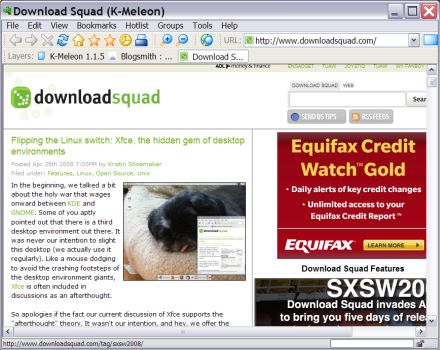
A few weeks ago we looked at K-Meleon, a light-weight browser for Windows that uses the same rendering engine as Firefox 2. The result is a browser that loads any page you can open in Firefox, which uses significantly less RAM than Firefox. There's also no support for add-ons or many of the other bells and whistles that make Firefox tick.
Galeon pretty much the same thing, except it runs on Linux, not Windows. In our tests, the browser eats about half the RAM of Firefox 3, and renders pages using the same engine as Firefox 2, which means that some pages that look funny in Firefox 3 look better in Galeon, making the browser excellent companion piece of software.
Like K-Meleon, Galeon does not support add-ons, or Greasemonkey scripts. And it doesn't have some of the more useful features you can find in Firefox 3 like full page zoom.
There's no shortage of light weight web browser for Linux. But since Galeon can render any web page Firefox can, the browser is far more useful than other browsers such as Dillo or Konqueror.

[Via: Download Squad ]
[Tag: ]

Add Google Reader to your Firefox Sidebar

Google Reader in the Firefox sidebar


Google rolled out an improved iPhone interface for Google Reader this week, and here's something neat you can do with it: Add it to your Firefox sidebar. While you can open practically any web site in a Firefox sidebar, some web pages are better suited to the sidebar than others. And the iPhone version of Google Reader fits the bill because unlike the full version of Reader, it's designed for small, narrow screens. And fortunately, you don't need an iPhone to access the new interface.


So here's how to add Google Reader to your sidebar:


  1. Create a new bookmark in your bookmark manager, or by right-clicking on your bookmark toolbar.
  2. Use http://www.google.com/reader/i for the location.
  3. Make sure to check the box that says "Load this bookmark in the sidebar."

And that's it. Click on your bookmark and you should see the iPhone version of Google Reader. Bear in mind that while it's easier to navigate the new iPhone interface than the old one, Google Reader does still look best in full screen.


[Via: Download Squad ]
[Tag: ]

gReader Comments adds Disqus comments to Google Reader

gReader Comments


Last year two services launched, giving bloggers easy access to threaded comments, spam control, avatars, and other advanced features. Disqus and Intense Debate also let you create a single profile which you can use to leave comments on any participating blog or web site. No need to register for each individual blog.


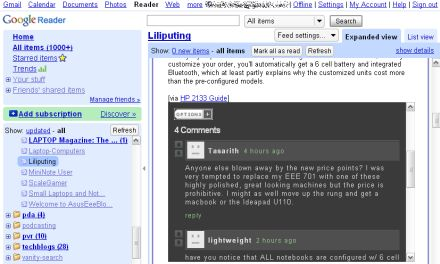
And since last year, thousands of web sites have adopted these two commenting systems. Considering there are millions of blogs out there, that's just a drop in the bucket. But every filled bucket starts with a single drop. Or something like that. Anyway, if any of the blogs you follow use Disqus, gReader Comments is a pretty nifty Firefox plugin that will let you see comments in Google Reader without clicking through to the blog.


Once you install gReader Comments, you should notice a new box in your Google Reader post windows that says Comments. Click on this box and a Disqus window will pop up showing you the comments left on the post and offering you the chance to leave your own comments.


The plugin still needs some work. We tested it with Firefox 2.0.0.14 and Firefox 3 beta 5, and in both browsers gReader Comments failed to accurately show how many comments each post had. At first it would show no comments, and then when you click the box on a post that actually has, say 3 comments, all the boxes may say 3 comments whether here are actually comments or not. But with a little more work, this could be an extraordinarily useful plugin for anyone who spends most of their time online in Google Reader.


[Via: A VC ]
[Tag: ]

Microsoft: Think twice about IE7 before upgrading to XP SP3

Uninstall IE7


Still haven't made up your mind about Internet Explorer 7? No problem, you can always uninstall it and revert to the Internet Explorer 6 web browser that came with your operating system. Unless you've upgraded to Windows XP SP3, that is. Because Microsoft is telling computer users that if they install IE7 before XP SP3, there's no going back.


Basically, when you install IE7, your IE6 files are saved in an uninstall directory that includes the original IE6 installation files and any security updates you've added over the years. But SP3 includes a different set of security updates. So if IE7 is already installed when you load SP3, the uninstall directory that was created when you were using SP2 is no longer valid.


If that's all a bit confusing, here's what you should take away: If you don't plan to use IE7, don't install it. Period. If you do plan to install it, but want to be able to uninstall it, then you should load Windows XP SP3 before upgrading from IE6 to IE7. If you upgraded Internet Explorer before installing XP SP3, the only way to uninstall it would be to uninstall the entire service pack, which is really far more trouble than its worth.


[Via: Computer World ]
[Tag: ]

K-Melon: It's like Firefox, without the Bloat

K-Meleon
K-Meleon is a light weight web browser for folks who don't need a ton of plugins, options, or much of anything except for a good utility for viewing web sites. The browser uses the same rendering engine as Firefox, so pretty much any page that you can access in Firefox can also be opened in K-Meleon. But don't expect your Firefox add-ons or Greasemonkey scripts to place nice with K-Meleon.

Because K-Meleon lacks some of the bells and whistles you'd find in Firefox, Internet Explorer, or Opera, the browser is fast. Like really fast. It also doesn't use as much RAM as Firefox, which is known to be something of a memory hog.

That's not to say that K-Meleon is a one-trick pony. The browser is customizable, and you can choose from a variety of skins and themes. And K-Meleon supports tabbed browsing, mouse gestures, pop up blocking, and macros.

K-Meleon is Windows only. But if you're looking for light weight Mac or Linux web browsers that use the same Gecko rendering engine as Firefox, check out Camino or Galeon. [Via: Download Squad ] [Tag: ]

How to add an IETab-like feature to Opera

Neptune
While there are dozens of excellent web browsers for Windows, Mac, and Linux, many of them have a problem: There are a handful of web pages and services that are only designed to work properly with Internet Explorer, Firefox, or both. So as much as we love the speedy little Opera web browser, we've been reluctant to use it on a day to day basis. And then we discovered Neptune, a plugin that lets you open an Internet Explorer-compatible tab within Opera. Note that Neptune will only work on Windows, since you need to have Internet Explorer installed for the plugin to function properly.


In order to install the free plugin, download it, close Opera, and click the Neptune executable. Next, you'll want to find your Internet Explorer plugin folder (which will probably be something like "c:\program files\internet explorer\plugins," and copy the file called npmeadax.dll to your Opera plugin folder, which will probably be something like "c:\program files\opera\program\plugins."

Next you'll need to add a button to your browser toolbar to let you open a window using the IE rendering engine. You can find several buttons at OperaWiki. Just drag the button with the function you want to your toolbar. Make sure to drag it to the "Main bar" and not your "Personal bar." Because these bookmarklets use Javascript, if you put them in the Personal bar, they'll be converted into bookmarks that don't really do much of anything.

You can choose from several buttons that let you open a URL using the IE rendering engine in your current tab or in a new tab. Alternately, you can use the InIE and InFF buttons to open a URL in an external window using Firefox or Internet Explorer.


[Via: Opera Watch ]
[Tag: ]

Make Firefox more responsive when loading pages - Browser Tip

content.switch.thresholdFor some reason when a page is loading in Firefox, it doesn't seem to respond to user interaction immediately. For example, say you're loading a very long page (maybe you're using a free Backpack account), and you know that the content you need is half way down the page. By default, Firefox will ignore user interaction in favor of giving all processing power to page rendering.

It may well be that Firefox's engineers made this decision for a very good reason, but what if it bugs you that Firefox ignores you when you know exactly what you want to be doing? Well, it turns out there's a hidden setting in Firefox that will allow you to bend it to your will.

Firefox uses two priority modes when rendering a page: a low-priority mode that often checks for user input, and a high-priority mode that prioritizes page rendering over user input. There is a timer that determines how long Firefox will wait for user input before switching to high-priority rendering mode.

The Geek at How-To-Geek researched this setting, and determined that switching the default value from 750000 to 1000000 is a good balance that allows for a more responsive feeling browser, while still giving an adequate amount of time to the high-priority mode.

To make this change yourself, type about:config into your Firefox address bar, then type content.switch.threshold into the Filter field. You will likely not have any results returned. If the setting already exists, simply switch the value from the default 750000 to 1000000. If it doesn't, right click anywhere in the window and choose New > Integer. Use the following setting:


  • Key Name: content.switch.threshold
  • Key Value: 1000000
To reverse this tip, simply right-click on the setting and choose Reset from the context menu.
[Via: Download Squad ]
[Tag: ]