Showing posts with label Troubleshooting. Show all posts

Things GTD app expires, causes stir amongst users

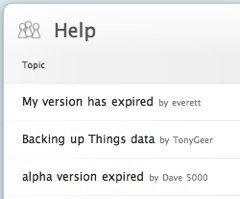
Things, the popular personal organization application from Cultured Code, is still in testing, but it already has a large userbase that is thoroughly addicted to its attractive to-do list features. It's no surprise, then, that when the clock turned to midnight in Australia and Things suddenly expired, users were up in arms. Hours later, users in the US experienced the same problem. Several people congregated on the official Things help forum, which had nearly 50 postings on the problem as of 2:30 this morning.

Cultured Code hasn't yet responded with an explanation of why Things was set to expire. The application is still free, but users have already come to rely on it, with more than one person posting that they would gladly pay the $49 pricetag Cultured Code will charge for the 1.0 release to continue using Things right now. Why the expiration, though? We expect to see either a quick fix or an update pushed out this morning -- as the app is currently at version .9.1.1, the highly anticipated 1.0 release is possible, but not likely.
If you're a Things user, visit the help forum for some unofficial ways of resolving the problem. So far, most people are either setting their computers' dates back or using a hex editor to change the expiration date. Despite all the fuss, this could end up working in favor of Cultured Code. Our take: any publicity is good publicity when people are this frantic about your product.


Update: Version 0.9.1.2 is now available.


[Via: Duncan Riley ]
[Tag: ]

5 Steps for resetting a forgotten password

GRUB


It happens to everyone. You have so many usernames and passwords that you can't remember them all. Fortunately, Facebook, Gmail, and about a billion other online services have a "forgot password" link. Just click it and the web service will either email your password to you or allow you to reset it and enter a new one.


But what happens when you forget the password for your operating system. Not that this has ever happened to us, but hypothetically let's say we were trying to perform a fresh install of Ubuntu on a laptop this afternoon. We zipped through the installation screens so quickly that we may have accidentally inclued a typo in our password. So when the installation was complete, our (still hypothetical) computer booted up, loaded a splash screen, and then wouldn't let us login no matter how many variations of our password we type.


While you might think the easiest thing to do is reinstall Ubuntu, (after all, this is a clean install so it's not like we'd be losing any data on our hypothetical system), you can save yourself 15-30 minutes by changing the password. It turns out you don't have login to change your password. As we discovered thanks to a useful post on the Ubunut forums, you can do it from the bootloader screen. Check out the 5 easy steps after the jump.


  1. Turn on your computer, and as soon as you the Press Esc to enter grub message, press the escape key.
  2. Select the option that says (recovery mode).
  3. Your PC will boot into a shell. Once you get a command prompt, type "passwd username" where the username is your username. If you can't remember this, then you can type "ls /home" which should bring it up.
  4. Enter a new password when prompted, and again when prompted again
  5. Type "shutdown -r now" to reboot your syste,

That's it. You should now be able to login with your shiny new password.


[Via: Download Squad ]
[Tag: ]

64-bits of frustration, eliminated with FF3in1

Back on April 24th, we happily installed a clean version of the 64-bit Ubuntu Hardy Heron release. For a few days, life was sweet. Hardy had Firefox, and we very easily installed Flash from the Hardy repositories. It all seemed to work fine, at first glance.

The honeymoon ended really quickly. We started to notice that Firefox was doing exceedingly odd things when we tried to upload images to our blogging software. It would try its damnedest to upload, but there was just no love.

After much frustration and swearing, we were reminded of a neat little script put together by Kilz on the Ubuntu Forums. We had used FF3in1 previously, with great success. It was a slightly different situation that time (Flash wouldn't install), but all signs pointed to it being a 64-bit versus 32-bit issue this time around, as well.

FF3in1 conveniently installs the 32-bit version of your choice of browsers on your 64-bit Ubuntu system. It also installs various plugins. It's pretty simple. Enable universe and multiverse in your repositories, unzip and run FF3in1. It'll install the proper dependencies (though it did skip lib32nss-mdns on our system, which is necessary for the browser to see the internet connection). It even allows you to opt out of plugin installations.

FF3in1 gives the option for several browser installs -- Flock, Firefox 2, Swiftweasel and IceCat. The script works on Dapper, Edgy, Feisty, Gutsy and Hardy. It can also be used to install multiple browsers (for web developers, or maybe because you can never have too many?).

Best of all, it did indeed solve our problem. We'd definitely recommend giving FF3in1 a whirl to those 64-bit Ubuntu'ers out there that are having some odd glitches with the default install of Firefox.


[Via: Download Squad ]
[Tag: ]