
Most of the other Linux distributions I've tested on my MSI Wind were "customized" for netbooks, but they ultimately ended up feeling like a standard desktop distribution with an interface tweaked for small displays.
One thing immediately sets moblin apart from the others.
After installing it to the hard drive and rebooting my system, it took a mere 16 seconds to get from the Grub menu to the XFCE desktop. Holy boot times, Batman! That's impressive.
I'm aware that users have gotten times like this before with distros like Arch, but Moblin will be easier to deal with for most netbook users.
The pre-installed applications are kept to a minimum - Firefox is included and you'll be able to enjoy your music and videos with Movie Player. There are also lightweight GTD apps for managing contacts, tasks, and a calendar. You can, of course, add whatever other packages you like through yum or add/remove software.
If you want to take moblin for a test drive you can download an iso file, or a virtual machine for VMware or KVM. Keep in mind this is an alpha release. Moblin's finished form may look nothing like this, but it's an intriguing project even at this stage of the game.
[Via: Download Squad ]
[Tag: linux, mid, moblin, netbook ]
Who needs instant on? Moblin boots in about 15 seconds
Gwibber brings Twitter, Facebook, Flickr and more to Linux desktops

Like Twhirl and other desktop Twitter apps, Gwibber will show you a list of the most recent updates from your contacts and let you respond with short messages. In addition to Twitter, Gwibber supports updates from Digg, Jaiku, Facebook, Flickr, Indenti.ca and the now defunct Pownce.
One thing that's a bit confusing is that Gwibber doesn't provide a clear way to tell which messages are coming from which services. For instance, I added my Twitter and Flickr accounts to Gwibber and the only way I could tell that some of the updates were from Flickr was because they were accompanied by thumbnail photos. Update: You can adjust the colors for each account in the preferences.
Gwibber packages are available for Ubuntu, OpenSUSE, and Fedora.
[Via: MakeUseOf ]
[Tag: facebook, gwibber, twitter ]
WordPress 2.7 is released

I'll give Brad a pass on being a tad premature with the WordPress 2.7's announcement, because I know that he -- like many of us who use WordPress to power our self-hosted blogs -- was just super-excited about the new release. Well, the wait is over and the official release for WordPress 2.7 is now available from WordPress.org.
WordPress 2.7, named "Coltrane" in honor of the Jazz legend, is a pretty significant step forward in WordPress's history. As Brad noted in his first look at the 2.7 beta, most of these changes are on the backend, but they are designed to greatly enhance your productivity and speed in maintaining your blog. On the front-end side, threaded comment support and support for "sticky" posts make it easier for readers to communicate with one another and access important information.
You can check out the WordPress Codex for 2.7 to see some of the technical details behind the new changes. I had a chance to talk to Mark Jaquith, one of the lead developers for WordPress .org, about the new release and some of his favorite features.
radical change from WordPress 2.5/2.6 and the 2.x series before it. What went into the development and what are some of your favorite UI features?
Mark Jaquith: We did a series of user tests on the 2.5/2.6 admin as well as on an experimental branch nicknamed "Crazyhorse." It involved eye tracking and timing and other nerdy goodies. We got a ton of data from this, as well as a new UI resource in the form of Jane Wells, now an Automattic employee. Jane came in with a lot of UI and usability knowhow, but relative unfamiliarity with WordPress, at least compared to the core developers.
That turned out to be a really good combination, as she challenged a lot of things that we had just sort of taken for granted, or written off as too difficult to fix properly. She was able to tell us exactly why those things needed to be fixed, and back it up with real data. This was a huge change from before, where we'd do things based on instinct or bow to the loudest voices shouting about a problem they were having. I found myself looking at UI issues from new perspectives, and I think the quality of our UI work improved measurably. Everyone seemed really excited about 2.7 development. We had over 150 people contribute code to the release, and many in the core team put in long hours sweating the details together.
My favorite UI features are the customizable post screen and the menu system. I'm especially proud of the new Publish module on the post screen. It's a small thing, but it's an essential and powerful area. I spent a lot of time on that, figuring out ways to make it more intuitive. One example: if you set a post date to a time in the
future, the "Publish" button changes to "Schedule," on the fly. That way you're absolutely certain of what happens when you press that button.
DLS: What are your favorite WordPress 2.7 features or additions?
Mark: My number one favorite feature is the comment moderation keyboard shortcuts. Dealing with comments has always been tedious. Anyone who has ever moderated more than ten comments in one sitting has gotten
mouse fatigue trying to click those "Spam" and "Approve" and "Delete" links over and over. Now, you can moderate comments -- even reply to them -- all without touching the mouse. It's fast, it's efficient, and anyone who gets more than ten comments a day is going to fall in love with it.
My second favorite feature is probably the built-in core upgrades. Too many people are running old versions of WordPress, and a big reason for that is not lack of knowledge, but fear of the upgrade process. This makes upgrading really fast, and really simple. I hope it means that more people will be keeping their WordPress site up to date!
DLS: Auto-updating of the WordPress core is a huge, huge addition. Is there anything (that you know of) that users need to check with their host or server configurations to use this feature?
Mark: The WordPress documentation has a list of compatible hosts
(http://codex.wordpress.org/Core_Update_Host_Compatibility) but there
are certainly things you can do to make things go smoothly. They're a little geeky, but once you get them sorted out, you should be good from then on.
There are two upgrade methods:
The first, and the fastest, is the direct method. This happens only if the server has the ability to overwrite your WordPress files. You'll have to check the "ownership" of the files as well as their permissions. Check with your host about these settings.
The second method is FTP, which is slower, but the only option for many people. For this, you'll usually want the "owner" of the files to be your FTP username. If you can edit your WordPress files via FTP, you're probably good to go here. With this method, you'll get asked for your FTP information.
We hope that web hosts will help their users get any initial permissions tweaks done -- it's in their interest to keep WordPress installs on their server secure and up-to-date!
DLS: Are there any backend code changes you guys are especially proud of or happy with?
Mark: The bulk of the effort was focused on the admin UI, but some backend
stuff was changed. The number one "hidden" backend change was the addition of the comments API. Wouldn't it be cool if you could moderate your comments from your iPhone or from your desktop blogging application? Stay tuned!
DLS: Is there anything for users upgrading to be aware of in advance?
Mark: Any plugin that modifies the administration interface (like custom admin themes) is certainly going to break, but that's to be expected. The good news is that while a lot changed visually, not that much
changed as far as API functions and core WordPress functions. Fewer things are going to break that you'd expect.
Remember that 2.6.5 is still secure -- so if you want to wait a few days to see if your favorite plugins come out with updated versions, you could. Of course, we'll all be partying without you!
--
I'd like to thank Mark for taking the time to talk to me about WordPress 2.7. WordPress 2.7 is free and available from WordPress.org. If you're hesitant about the upgrade (mine went perfectly from 2.6.5 to 2.7), check out these plugin, theme and host from the WordPress Codex.
And check out our gallery of WordPress 2.7 screenshots that highlight some of our favorite features! [Via: Download Squad ] [Tag: blogging, interview, interviews, mark jaquith, MarkJaquith, wordpress, wordpress-2.7 ]
BitLoot helps turn ideas into Open Source software
I've written about plenty of great software, but I'll probably never create any on my own. I'm no programmer, unless you count the projects I used to cobble together on our Commodore 64 and Apple IIe when I was in middle school.
That's why I like the idea of bitloot. It's a simple concept. Submit your idea for an application and it's added to bitloot's listings. Once some financial contributions are made, a developer is selected and creates the code.
Developers that think they've got a cool idea and would like a way to gather some donations can submit an idea and select "me" as the developer.
It's a terrific idea. You get a custom-made program, the developer gets a little compensation for his or her efforts, and the community gets both a new application and open source code to play with.
Bitloot is still fairly new, so why not help get things rolling? Visit the site and submit some ideas, or donate a few bucks to a worthy project!
[Via: Download Squad ]
[Tag: coding, development, FOSS, open-source ]

Amarok 2.0 Linux music player released
Open source music player Amarok 2 was released this week. The latest version of the popular KDE-based application features a completely retooled user interface, integration with online services like Shoutcast, Magnatune, and Jamendo, and support for the KDE 4 desktop environment.
That last bit is important, because if you try to install Amarok 2 on a system running KDE 3.5 you'll probably need to download a whole slew of other updates in order to get the music player working.
There are Windows and OS X ports of Amarok, but right now online Linux distributions (including Kubuntu, OpenSUSE, Fedora, Debian, and PCLinuxOS) are officially supported.
[Via: Ubuntu Unleashed ]
[Tag: amarok-2, kde, linux, music ]

The Google Android user interfaces that didn't make the cut
In case you haven't heard, the T-Mobile G1, or the first mobile phone to run the Google Android operating system, is now available. As we've discussed before, Android has an interesting user interface, that's something of a cross between the iPhone UI and a Windows desktop. But have you ever wondered what design choices Google rejected?
Software design team TAT, which helped create the Google Android interface has posted a page showing a bunch of concept designs that didn't make the final cut. Some of the designs, like "Asia Cute" were obviously a bit too niche to be considered seriously. Others, like "Windows Mobile Homescreen" just seem too busy to me. But the "Browser Concept" view for the web browser is pretty attractive, if not particularly useful. And the "History Lane" interface for the music player could have given Apple's CoverFlow a run for the money.
The nice thing about Google Android is that it's not locked down like the iPhone operating system. And that means there's nothing preventing third party developers from taking some of these design ideas and running with them. Or coming up with something else entirely. We've already seen third party skins for Windows Mobile, and that's a closed source OS. With an open source OS like Android, the sky's the limit.
We'll have more Google Android updates for you throughout the day.
[Via: Download Squad ]
[Tag: ]
Flipping the Linux switch: Switching, literally, with Ulteo Virtual Desktop

We are a little bit disturbed. Not in a "We just watched a David Lynch movie" sort of way, but still, it is a little unnerving to think that our last post on Ulteo hinted at a world domination plot... and now it seems that goal is within their reach.
It is also a little unsettling to eat our words. We read about Ulteo's Virtual Desktop and its claims to run Linux apps quickly and smoothly under Windows. And we thought, "Yeah, right." We've used embedded Linux on Windows before. It works in a pinch, but it's not terribly responsive. It's also a little disorienting to be working in Linux, and then need to manually perform some key combination or mouse gesture to get to a Windows application.
Like andLinux, Ulteo's Virtual Desktop (often referred to with the rather misfortunate name UlteoVD) runs off a coLinux base. There is no virtualization software involved. But we'd especially recommend UlteoVD for those pondering whether a Linux switch could work for them, for a number of reasons.We'd recommend UlteoVD first to people who are currently using or could see themselves using their previous services. Ulteo started by offering OpenOffice.org in a browser, coupled with syncing services. Nice, for sure. They then offered an installable Ulteo disk, which felt a lot like Ubuntu in many ways, with the noticeable difference of automatic updates (as in, no user interaction) and syncing with the browser based services.
If you are into those previously listed offerings, that's great. We'd venture to say, though, those aren't the most appealing ways to ease into Linux or learn about Linux applications. Usually applications in browsers are slow, and jumping headfirst into a new operating system install (especially one clearly marked "beta") is (understandably) terror-inducing.
This is a great middle-of-the-road approach. Once UlteoVD is installed, you have access to essentially all the programs you'd find on most popular Linux distros. You also have simultaneous access to your Windows applications, and Desktop and My Documents files. UlteoVD lets you see if the Linux environment and applications are right for you without needing to dual boot, or even reboot.
UlteoVD is a large download, and does take up quite a bit of disk space (approximately 4 gb). It is easy to install, though there were some agonizingly long waits at certain stages of the installation. We'd advise anyone installing (especially on older, or underpowered machines) to be really patient with the install, and the first launch of the virtual desktop. The first dig at the desktop took an inordinately long time to actually launch. Subsequent virtual desktop launches aren't nearly as lengthy. Launching applications from the virtual desktop is just as fast (or faster) than launching a native Windows app.
We noticed as UlteoVD was launching that it did a few potentially scary things. We lost our network connection, for instance. We assume that it was because UlteoVD was accessing the network, and we were a little nervous that we wouldn't be able to access the internet except through the Linux application side of things.
This isn't the case. We were just as able to fire up IE as we were the UlteoVD-installed instance of Firefox. Not particularly sure how often we'd have need to do that, but it all worked smoothly.
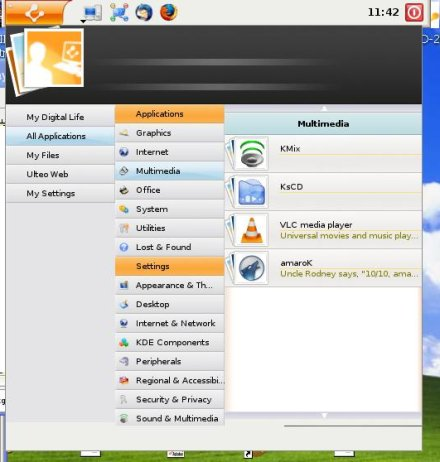

Ulteo also gave us the option of trying their default (stable), edge, or testing repositories. We tried both stable and edge with no catastrophic events. We did have UlteoVD crash once, and promptly relaunch. Considering that is still a beta, and that we were having issues with a native Windows photo editing application at the time, it wasn't particularly surprising.

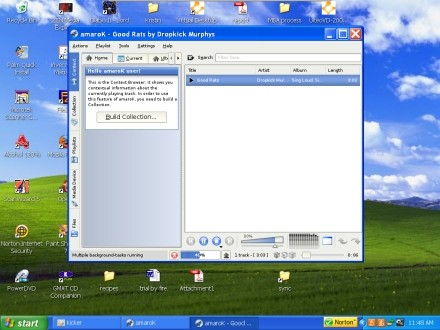
We were really tickled we could use Amarok on Windows XP now without the fun of compiling and tweaking for limited results. (We love to tweak with Linux, but somehow Windows seems to kill the joy in it.)
[Via: Download Squad ]
[Tag: ]
Galeon: It's like Firefox for Spartans

Galeon pretty much the same thing, except it runs on Linux, not Windows. In our tests, the browser eats about half the RAM of Firefox 3, and renders pages using the same engine as Firefox 2, which means that some pages that look funny in Firefox 3 look better in Galeon, making the browser excellent companion piece of software.
Like K-Meleon, Galeon does not support add-ons, or Greasemonkey scripts. And it doesn't have some of the more useful features you can find in Firefox 3 like full page zoom.
There's no shortage of light weight web browser for Linux. But since Galeon can render any web page Firefox can, the browser is far more useful than other browsers such as Dillo or Konqueror.
[Via: Download Squad ]
[Tag: ]
OLPC Sugar OS takes on a life of its own, will anybody care?
 The OLPC team yesterday announced plans to load Windows XP on XO Laptops in a handful of countries in June as part of a limited trial. By September, Windows could be available to any developing nation placing orders for XO Laptops. And today, Walter Bender, the former president of software for the OLPC Foundation says the unique software interface that was designed for the XO Laptop will live on. Maybe.
Here's a little background. The XO Laptop was designed to be a cheap laptop that could be distributed in developing nations to help bridge the digital divide. The original plan for the XO was to use Linux as an operating system because it's cheap, works well on low-powered devices, and because it's open source anyone could write software for it easily. A unique desktop environment called Sugar was built to make Linux more user-friendly. But many governments have been reluctant to place orders for the laptops because they don't run Windows, which is the desktop operating system used by most of the rest of the world. So the OLPC Foundation has been working with Microsoft to bring a low cost version of Windows XP to the XO.
But what does that mean for Sugar? Walter Bender says Sugar Labs, a new non-profit will develop new versions of the software. The goal is to continue developing open source software for the XO so that children in developing nations will be exposed to open source applications and ideals as they learn about computing. The question is, if Windows XP is available for just $3 more than Linux, will anybody buy the Linux/Sugar version? Yes, we know that many Download Squad readers would be more interested in the Linux models, but if the goal is to give school-age children in your country computer literacy, wouldn't you want them to use the same software that most students in countries like the US are using?
[Via: Download Squad ]
[Tag: ]
OpenSolaris 2008.05, and other places the sun don't shine

Way back in the dark ages of 1993, we were introduced to this thing called email. Email in the olden days was not like email now. All the packets traveled uphill no matter where they were going, and usually there was a good three or four feet of snow on the internet backbone. We used these big hulking things called VAX/VMS nodes that were attached to some pretty sweet fourteen inch monochrome VT 100 terminals. There were also these machines that ran something called UNIX, which sounded to us like something that should have been found in the college health center, not the computer lab.
Eons passed, and things changed. Though there were many more email packets flying around, plate tectonics had changed the course of things so that now they traveled downhill, really really fast. The internet backbone became a series of tubes. All the VT 100 terminals banded together and created an archipelago in the South Pacific. And UNIX...
UNIX evolved. Mutated. It trickled down into various UNIX brands and distributions. There were things like BSD UNIX, HP-UX, and AT&T Bell Labs UNIX. There were other branches, too, rogue sprouts on the evolutionary tree: FreeBSD, and OpenBSD. Slightly alien but vaguely reminiscent life forms injected their DNA into the gene pool: Linux, and this weird little UNIX-esque animal called Solaris.
Sun recently let Solaris go open source. OpenSolaris is more a traditional UNIX environment than a Linux type environment, but the appeal of taking a peek at the 2008.05 OpenSolaris release was too great for us to resist. The folks at OpenSolaris knew this, and baked some goodies into the OS that no Linux user could refuse.
We were given a no-strings attached liveCD, so our Linux install would never know we cheated. We had a bash shell, and the GNOME desktop environment, so our eye candy and commands would feel familiar and easy.
Sometimes, though, evolution goes horribly, horribly wrong.We eagerly booted into our OpenSolaris environment on our Athlon64 X2 system. We selected our keyboard layout and language, and OpenSolaris graciously presented us with the X server and GNOME. It was pretty, and we could even activate Compiz, of all things. Yes, it was very pretty. And for a reason we'll discuss a little later, we thought it would be really beneficial to stop what we were doing with the liveCD, and reboot.

OpenSolaris had other ideas. It just didn't want to tell us what those other ideas were.
GRUB would launch, and we could select the standard OpenSolaris boot option. The splash screen showed its mug, and we'd be dumped on to a screen with the standard trademark and legal disclaimers. And the cursor would blink, and blink, and blink. We waited. Patiently.
But it was clear that the optical drive was no longer reading, and the hard drive was inactive. Keyboard presses did nothing. Trying the whole process again with a text console GRUB selection played out the same way.
Certain things disturb us much more than they probably should. Humanoid puppets, hyper-intelligent birds, and when our computers behave irrationally for no apparent reason are the big three. OpenSolaris had thrown down the first gauntlet, and by honor, we could not walk away. We had to know not only why it booted once, but why it didn't seem to want to again.
The condensed version of the next 21,600 seconds (six hours, for those not wanting to do the math) went something like this:
It's a 64-bit versus 32-bit problem. We'll edit our GRUB boot lines so we boot into 64-bit no matter what.
It's a 64-bit versus 32-bit problem. We'll edit our GRUB boot lines so we boot into 32-bit no matter what, then.
Does this piece of crap have an issue with SATA drives? How can it? That makes no sense!
Take out a stick of RAM? Are they kidding? This is based on Solaris. How can it freak at 2 gigs of RAM?
Let's disable PnP in the BIOS. Oh. It already is.
Let's mess with our memory timing. Reduce by half, they say. We laugh in the face of unstable systems.
We have got to be crazy. We've got to. Why is it so damn important if this thing ever boots again?
Why is our IDE controller on in the BIOS anyway? We don't have any IDE drives. Not that it affects anything anyway.
Let's try every ACPI setting there is. Twice. Let's disable ACPI APIC. Let's enable it again.
Who would realistically ever go through this to boot an operating system? What is wrong with us?
Oh, hey, there is a switch for kernel debugging and a verbose switch in GRUB! Edit kernel line with -k -v and boot.
At the six hour mark, we approached the solution:
ehci is having an issue. That's... USB stuff? Why does it say it is ignoring the error? Duh. Obviously it isn't.
Hey, BIOS! It's us again. Bye, auto legacy support.
That didn't work. Do we have any USB devices even attached? The printer. The printer isn't on. Or plugged in.
Let's boot with -k -v again. There, it's talking about the keyboard, and then ehci freezes--
They have got to be kidding. Seriously. Our mouse? It is a USB mouse. Fine. We'll put a PS/2 adapter on it. If this works, we will renounce the idea that technology operates on any sort of logic. Let's reboot 'er.
Dear readers, all that technology you see on the desk in front of you today? Apparently, it is a collection of happy accidents. Putting a PS/2 adapter on our mouse allowed us to reliably boot into OpenSolaris.
This confounds us on a few levels. Solaris is a UNIX derivative. UNIX is (at heart) a command line that has the ability to run a GUI. It doesn't have to. We could have booted without a mouse. But booting with a mouse that wasn't necessarily fully recognized as such is apparently disastrous. Is it an input device issue? A USB issue?
Linux, which is also at heart a command line that is able to run a GUI, does on occasion have issues with various mouse types. USB support on Linux has also been historically buggy, though it is much better than it was even two years ago. However, we've never had a Linux machine hang indefinitely because the pointer device was somewhere the OS didn't want it. We've had plenty of experiences with non-working mice.
Non-working mice are a lot easier to troubleshoot than non-working systems.
We tried out a Zen outlook (we've learned so much through this agonizing enlightening process!) and began playing with OpenSolaris in earnest.
Remember the history of email we touched on at the beginning of this post? Slow, uphill both ways? Snow on the backbone? Migraine inducing VT100 terminals? They are all still more effective than trying to connect an OpenSolaris machine to the internet.
We admit that Linux has a long way to go with wireless support. However, we can not remember the last time we had a modern, full-bodied distribution have any real issues with a wired connection. The most we might have to do in Linux is activate the appropriate device, or point it at the right gateway.
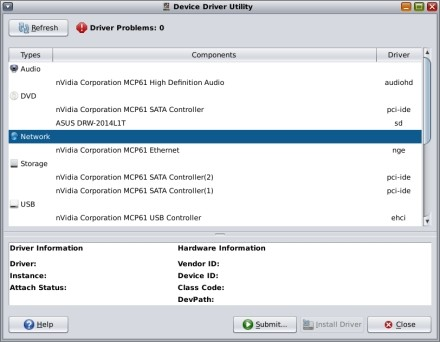
OpenSolaris does have this nice Device Driver Utility. Utility is a bit of a misnomer. Unless you write device drivers, it doesn't really do much, except tell where on the system the device driver is located and whether the driver is supported and working.
Our ethernet connection is located at nge0 (as opposed to the Linux eth0). Good to know. Our driver is working for the ethernet card. Awesome. Er, so why can't we get online?
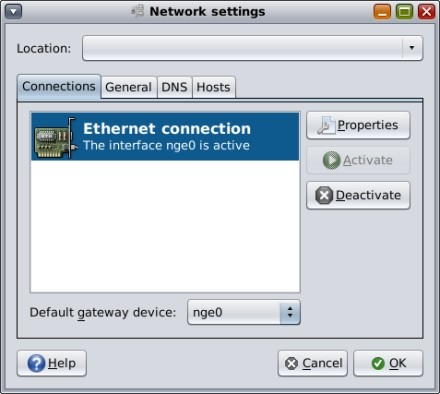
We can't reconfigure our card. OpenSolaris knows best. It uses this little Network Auto-Magic daemon. It thinks it is connected. It clearly isn't. Disabling the Magic is just different enough for a seasoned Linux user to feel a bit like they're in a bizarro universe, but at least the command line concepts between UNIX and Linux aren't horribly different.
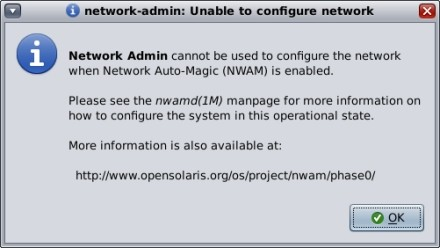
On a liveCD such as OpenSolaris, manually configuring the ethernet device isn't a walk in the park either. There's that whole root password thing. Where it seemed we should be able to manually enter nameserver information, and our gateway, and all sorts of things, it didn't let us. We are not root, or remotely worthy.
We finally dug up the "pfexec su" command, and tried to get online that way. We could add our nameservers, and gateway, and we could activate it all, now that we were disguised as root. Apparently, though, OpenSolaris has a problem with our router, and the way it assigns various addresses. We may be activated. We are not connected. Where is VAX/VMS when you need it?
We'd just spent six hours getting OpenSolaris to boot. To hell with the internet connection. We are determined to the point of amazing stupidity, but even stupidity has limits. At least ours does.
Don't get us entirely wrong, there are some nice things about OpenSolaris. It is very light on pre-installed applications. There are the applications that come with GNOME, like gedit, some games, and system administration tools. There are a few multimedia apps, GIMP, and gtkam. That's about it. It's a nice way to build a system that does exactly what you'd like. (We are puzzled by the inclusion of Compiz, frankly, because it's a feature that doesn't contribute a whole lot of function to the desktop. It seems illogical to be there by default given what else is and isn't included.)
Despite our USB mouse woes, flash drives mount automatically and work as expected. Our audio drivers exist and supposedly function, but they've gone to ground with our network connection. So system sounds won't play through GNOME's esd. Because there are some gstreamer plugins that require installation via the packaging system, we couldn't try out any media files.
If we were hardcore software developers with a keen interest in UNIX-type environments, we'd go ahead and install OpenSolaris on our computers. We'd just rely heavily on the ol' VAX/VMS set up and the cutting edge Mosaic browser for our networking needs.
For the desktop Linux user who is simply curious about UNIX derivatives, we'd have to advise taking a pass on this release, anyway. We'd probably tell you to check out OpenBSD, or FreeBSD, for a shot at a more successful change of pace.
[Via: Download Squad ]
[Tag: ]
FunPidgin: The result of an open source instant messaging spat
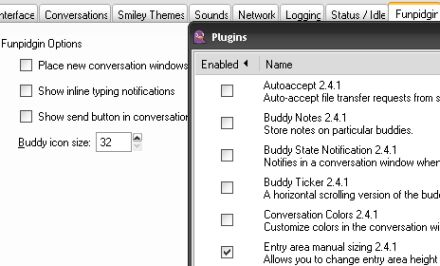
So a funny thing happened on the way to Pidgin 2.4.1. The developers of the open source, cross-platform, multi-chat protocol client recently implemented a new feature. When you're typing in a text box, it will start out just large enough for a few lines of text. And if your message gets longer, it will automatically resize. Pretty cool, right?
But the developers decided to eliminate the ability to change the text box manually. And that led to a rather intense debate in the Pidgin community. And the result is that there are now two branches of Pidgin. There's the "official" build which lacks image resizing because the developers didn't want to back down or even offer the option of changing the default behavior with a plugin. And there's the new Funpidgin build which has the same default text box behavior as Pidgin, but allows you to manually change text box sizes via a plugin.
We're going to ignore the question of which version is actually more "fun," and just point out that Funpidgin can basically do everything that Pidgin can, plus you can resize the text box manually. Funpidgin also has a few other features that Pidgin lacks, like the ability to adjust buddy icon display sizes.
[Via: Ubuntu Unleashed ]
[Tag: ]
Fedora 9 released
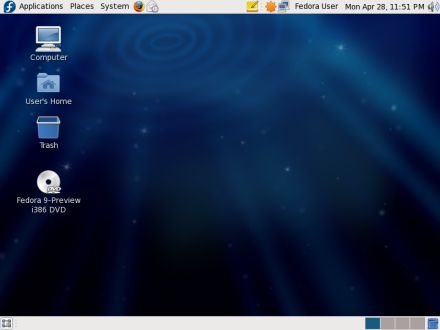
Fedora 9 is out today. The latest version of the popular Linux distro packs a bunch of updated and new features. Like Ubuntu 8.04, Fedora 9 includes the latest updates to the KDE and GNOME desktop environments, PulseAudio, and Firefox 3 beta. But unlike Ubuntu, the Fedora 9 LiveDVD weighs in at a hefty 3.33GB. Ubuntu distros typically fit on a single CD.
Fedora 9 also has several other major improvements, including:
- Experimental support for the Ext4 file system
- Spins, which are different versions of Fedora built with specific groups of software
- You can now download installation media using Jigdo
- Gnome 2.22, KDE 4.0.3 and Xfce 4.4.2 available on the LiveDVD
- Anaconda installer now supports resizing ext2, ext3, and NTFS file systems a well as creating and installing the OS to encrypted file systems
- Live USB installer now supports persistence, so you can run Fedora 9 from a USB flash drive and save your changes
- OpenJDK 6, an open source Java enironment is installed by default
Fedora 9 also comes with OpenOffice.org 2.4 and Firefox 3 beta 5.
[Via: Download Squad ]
[Tag: ]
Ubuntu release schedule: Right on schedule, and then some

You can practically set your watch by Canonical's release schedule for the Ubuntu Linux operating system. Every six months, the organization releases a major upgrade. While open source developers are constantly tweaking and improving Ubuntu, these major releases typically include better hardware support, new software, and the latest kernel and desktop environment updates.
Ubuntu founder Mark Shuttleworth says the team is now going a bit further. Not only will Ubuntu 8.10, 9.04, 9.10, and 10.04 be released at regular intervals, but Canonical will be releasing point upgrades for Ubuntu 8.04 every three months. Ubuntu 8.04 Hardy Heron gets this special treatment because it's an LTS or Long Term Support release. That means Ubuntu 10.04, which will be released in April, 2010, will get the same kind of support.
Shuttleworth does suggest that he'd be willing to throw out the release schedule (or at least amend it a teensy weensy bit) if another major Linux distributor like Red Hat, Novel, or Debian were willing to collaborate on a coordinated release.
For our part, we'd like to see Apple and Microsoft enter into that agreement. If there was a new version of Windows, OS X, and Ubuntu out every 6 months, or even every 2 years, consumers would always have the option of picking among the latest, and most up to date operating systems, whether free and open source or commercial and closed source. Not that this will ever happen, but sometimes it's nice to dream.
[Via: Download Squad ]
[Tag: ]
64-bits of frustration, eliminated with FF3in1
Back on April 24th, we happily installed a clean version of the 64-bit Ubuntu Hardy Heron release. For a few days, life was sweet. Hardy had Firefox, and we very easily installed Flash from the Hardy repositories. It all seemed to work fine, at first glance.
The honeymoon ended really quickly. We started to notice that Firefox was doing exceedingly odd things when we tried to upload images to our blogging software. It would try its damnedest to upload, but there was just no love.
After much frustration and swearing, we were reminded of a neat little script put together by Kilz on the Ubuntu Forums. We had used FF3in1 previously, with great success. It was a slightly different situation that time (Flash wouldn't install), but all signs pointed to it being a 64-bit versus 32-bit issue this time around, as well.
FF3in1 conveniently installs the 32-bit version of your choice of browsers on your 64-bit Ubuntu system. It also installs various plugins. It's pretty simple. Enable universe and multiverse in your repositories, unzip and run FF3in1. It'll install the proper dependencies (though it did skip lib32nss-mdns on our system, which is necessary for the browser to see the internet connection). It even allows you to opt out of plugin installations.
FF3in1 gives the option for several browser installs -- Flock, Firefox 2, Swiftweasel and IceCat. The script works on Dapper, Edgy, Feisty, Gutsy and Hardy. It can also be used to install multiple browsers (for web developers, or maybe because you can never have too many?).
Best of all, it did indeed solve our problem. We'd definitely recommend giving FF3in1 a whirl to those 64-bit Ubuntu'ers out there that are having some odd glitches with the default install of Firefox.
[Via: Download Squad ]
[Tag: ]
Audacity 1.3.5 beta Cross-platform audio editor updated

The Audacity team has released an updated version of the popular opern source audio editing application. Audacity 1.3.5 beta packs a bunch of minor updates, including bug fixes better file handling, and some interface improvements. Here are some of the things that jumped out at us:
- Hit Shift while clicking record to start a recording at the end of an existing track
- Users should see fewer invalid sample rate problems under LInux
- Updated versions of the Portaudio, Libogg, LIbvorbis, and other libraries
- More informative dialogs when dealing with unsupported file formats
- New keyboard shortcuts
Audacity is already one of the best free audio editing applications for Mac, Linux, and Windows, and the program just keeps getting better.
[Via: Making Music ]
[Tag: ]
SourceForge implements OpenID

OpenID is an open source, decentralized, digital identity user system which allows users to have one identity across the internet and alleviates the hassle of having multiple user names and passwords to log-in to different sites.
OpenID is gaining traction with big companies such as AOL, Sun, Microsoft, and Novell who are accepting and providing OpenIDs. Today it is estimated that there are over 160-million OpenID enabled URIs with nearly ten-thousand sites supporting OpenID logins.
Thanks FF!
[Via: Download Squad ]
[Tag: ]
Detect and track registry changes with RegRunner
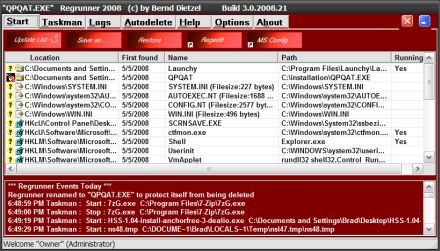
While not every program that posses a threat to your PC will attempt to write changes to your Windows registry, an awful lot will. So one way to keep your computer healthy is to track any changes to your registry. RegRunner is a free utility that hangs out in your system tray until a registry change is made, and then it pops up to let you know that something's going on. In other words, if you install and uninstall software on regular basis, RegRunner could be just as annoying as the user account control pop-up in Windows Vista. But just like the UAC, RegRunner can also prevent you from doing anything too foolish.
RegRunner also has a couple of other useful features. It will show you a list of programs that load when Windows starts. Another tab shows running processes.
The program does not include an uninstaller. If you want to remove RegRunner from your system, you'll have to delete installation directory and the shortcuts from the Startup folder in your Windows start menu.
[Via: Inspect My Gadget ]
[Tag: ]
Flipping the Linux switch: Xfce, the hidden gem of desktop environments
 In the beginning, we talked a bit about the holy war that wages onward between KDE and GNOME. Some of you aptly pointed out that there is a third desktop environment out there. It was never our intention to slight this desktop (we actually use it regularly). Like a mouse dodging to avoid the crashing footsteps of the desktop environment giants, Xfce is often included in discussions as an afterthought.
So apologies if the fact our current discussion of Xfce supports the "afterthought" theory. It wasn't our intention, and hey, we offer the consolation that if it really is an afterthought, and least it's going to be detailed.
Xfce indeed, is the third major desktop environment. It's kind of like the fifth Beatle. People know it's there, but... What's it called again? What's it do?
That, friends, is totally unfair. Xfce is one of the fastest and easiest desktops out there. It balances pretty and functional without any extraneous annoyance getting in the way. It isn't most people's first Linux desktop environment. But it very well could be.There are a lot of reasons to love Xfce. It's a cross platform sort of desktop. This means that you can use it in Linux, or Solaris, or FreeBSD or even OS X. It's modular. If you don't need some of the modules, they can be excluded from the installation. There are also quite a few cool little features, like a kiosk mode, neat little widgets, and a built-in compositor. The compositor is particularly nice for those who don't like or can't get their machines to run Compiz well.
But just because we're total nerds, and because we've found ourselves in other desktop environments wishing for its presence, let's begin by talking about Thunar. Thunar is Xfce's file management system. It's the equivalent to Dolphin, or Nautilus, or Windows Explorer.
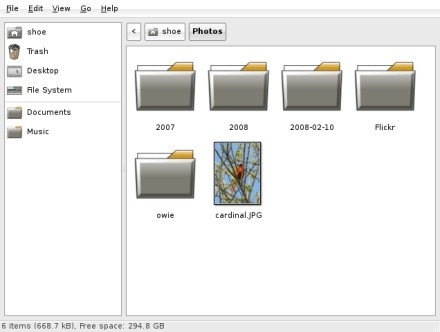
In the grand scheme of things, it seems fairly unremarkable. It doesn't have a split view like Dolphin, for instance. It's extensible and has plugins, much like Nautilus. But what makes it stand out is how clean, how well integrated, and how fast it is.
There are nice features like bulk renaming, as well. Honestly, though, even if we never used that sort of feature, we prefer Thunar to the other file managers. It's that much faster, and requires less configuration for (what seems to us, anyway) logical file manipulation.
Xfce is based on the GTK+ library. This is nice, because not only are there some native "Xfce-flavored" applications out there for the desktop, but GNOME apps play quite nicely and don't look terribly out of place. KDE applications, of course, also translate quite well, but we've still found the look a little incongruent. For our favorite KDE applications, though, that's not a deal breaker.
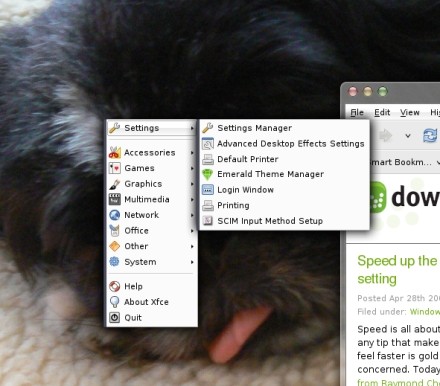
It's the little things that have made Xfce really work for us. It seems sort of ridiculous, but we have to come to adore that right clicking the mouse anywhere on the desktop, by default, brings up the main menu. Stupid? Yes. And wait till you get used to it, and are dropped in either a desktop environment or operating system that doesn't have this handy little tweak enabled. That's when you'll realize just how often you use it.
The visual flexibility of the desktop is appreciated. With the release of Hardy Heron, it seemed as though Xubuntu went for the "GNOME-esque" look with the Xfce layout. Not at all a problem, really, and it could even be an advantage if you're making the switch from GNOME to Xfce. But it didn't really float our boat. We actually liked that Xfce looked... well, the way it looked before. It was sort of an OS X feel.
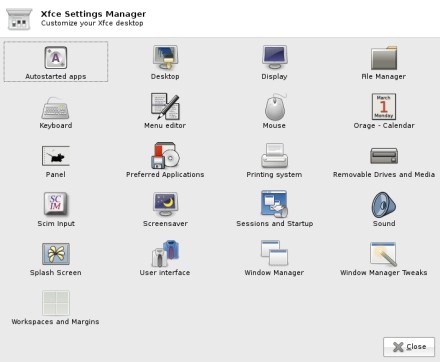
Every desktop can be made to look a certain way, but some just lend themselves to it better than others. Xfce is so understated in terms of customizations, but the customizations offered change the look so much. We only want one panel? Xfce can do that. We've totally lost our minds and would like several hundred panels? Xfce leads us down the road to that insanity. Do the panel widgets and icons send us in to a homicidal rage, and the only thing that can quiet us is to remove, move, or substitute images? Absolutely no problem.
Though we are running our current install of Xfce with Compiz-Fusion and Emerald, there is, as previously mentioned, a nice little compositor built right in to Xfce. It's not quite as dramatic as Compiz, but it's also a lot less likely to make your older machines scream in agony. It's also endlessly easier to make work than Compiz, which still requires, in some cases, the customary sacrifice of two Little Debbie snack cakes to the Composite Gods.
This kinder, gentler compositor can be found on the Settings Manager panel by clicking the Windows Manager Tweaks icon. You won't be able to get a passing virtual rainstorm to put out e-fires you've lit on your desktop, but you will get some nifty transparent windows and drop shadows.
We mentioned native Xfce applications earlier. Some of them are pretty nice. We particularly like Orage, the calendar application. When added to a panel, it displays the date and time. Clicking on the date and time launches the Orage calendar. Clicking the selected date launches yet another dialog that allows for the addition of events, to-do lists, and journals ("Dear Diary, Xfce is dreamy but doesn't know I exist!"). A search function lets us find those events we so painstakingly wrote down, were reminded of, and totally forgot to attend anyway.
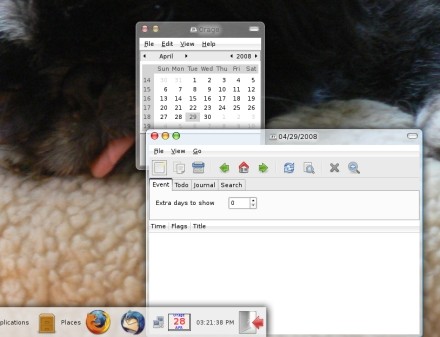
Orage also allows for the exchange, export, and import of calendar data in the .ics format. Entries can be archived, so we can look back at our youth and try to convince ourselves we didn't squander it. It may not be the most powerful calendar application out there, we'd still say that for most purposes, it's more than sufficient.
Xfce may not be the best dressed desktop environment (well, not right out of the box, anyway). We can say without reservation that it is the fastest, and most utilitarian desktop environment from the moment it's launched till the time we log off. The menu is always just a right click away, and well placed panels make easy work of finding applications. The plug-ins and widgets are imminently useful.
Xfce hit the sweet spot in desktop environments: easy enough for a newbie to get started and feel comfortable quickly, powerful and extensible enough for an experienced user to get it all done.
[Via: Download Squad ]
[Tag: ]